Preparamos la parte del proyecto que mostrará los datos al mundo, en mi caso una página web.
Hay dos posibles soluciones usar un servidor propio o usar un hosting web.
Puede ser un servidor que tengamos en nuestra casa, ya sea una máquina dedicada o una máquina virtual, si no lo
queremos tener en casa, podemos alquilar un VPS a una de las tantas empresas que prestan estos servicios.
Empezaré a explicar el que para mí entender es el más profesional, un servidor Linux en local o puesto en
Internet.
Mi escenario es el siguiente:
gotcha@hortelano:~$ lsb_release -a
        No LSB modules are available.
        Distributor ID: Ubuntu
        Description: Ubuntu 20.04.3 LTS
        Release: 20.04
        Codename: focal
gotcha@hortelano:~$ apache2 -v
Server version: Apache/2.4.41 (Ubuntu)
Server built: 2021-09-28T22:28:10gotcha@hortelano:~$ php -v
PHP 7.4.3 (cli) (built: Aug 13 2021 05:39:12) ( NTS )
Copyright (c) The PHP Group
Zend Engine v3.4.0, Copyright (c) Zend Technologies
with Zend OPcache v7.4.3, Copyright (c), by Zend Technologiesgotcha@hortelano:~$ named -v
BIND 9.16.1-Ubuntu (Stable Release) <id:d497c32>gotcha@hortelano:~$ mysql -V
mysql Ver 8.0.26-0ubuntu0.20.04.3 for Linux on x86_64 ((Ubuntu))Si vamos a usar un Servidor de Nombres (DNS), deberemos elegir un dominio, y configurar la IP del servidor en todos aquellos equipos que queramos que nuestro DNS actúe. Es obvio que el propio Servido de Nombre, debe resolver él mismo sus peticiones DNS.
Mis datos son los siguientes:
gotcha@hortelano:~$ ip a
    1: lo:  mtu 65536 qdisc noqueue state UNKNOWN group default qlen 1000
        link/loopback 00:00:00:00:00:00 brd 00:00:00:00:00:00
        inet 127.0.0.1/8 scope host lo
            valid_lft forever preferred_lft forever
        inet6 ::1/128 scope host
        valid_lft forever preferred_lft forever
    2: ens33:  mtu 1500 qdisc fq_codel state UP group default qlen 1000
        link/ether 00:0c:29:61:87:42 brd ff:ff:ff:ff:ff:ff
        inet 192.168.1.97/24 brd 192.168.1.255 scope global ens33
            valid_lft forever preferred_lft forever
        inet6 fe80::20c:29ff:fe61:8742/64 scope link
        valid_lft forever preferred_lft forever
Es importante configurar una IP Estática en vez de una IP dinámica, en Ubuntu se configura tal como así y ya que vamos a tener servidor DNS propio ya lo agrego a la configuración.
gotcha@hortelano:/etc/netplan$ cat 00-installer-config.yaml
        # This is the network config written by 'subiquity'
        network:
          ethernets:
            ens33:
              addresses:
              - 192.168.1.97/24
              gateway4: 192.168.1.1
              nameservers:
                addresses:
                - 127.0.0.1
                - 8.8.8.8
          version: 2
Ahora aplicamos los cambios:
gotcha@hortelano:/etc/netplan$ sudo netplan applyPara saber más de configuración de la tarjeta de red en Ubuntu https://mytcpip.com/netplan-ubuntu/
Después de una instalación inicial nos aseguramos que está al día de repositorios y de paquetes para ello:
gotcha@hortelano:~$ sudo apt-get update -y
gotcha@hortelano:~$ sudo apt-get upgrade -y
gotcha@hortelano:~$ sudo apt-get dist-upgrade -y
Limpiamos los paquetes viejos y sobrantes:
gotcha@hortelano:~$ sudo apt-get autoremove -y
gotcha@hortelano:~$ sudo apt-get autoclean -yProcedemos a instalar el servidor web Apache.
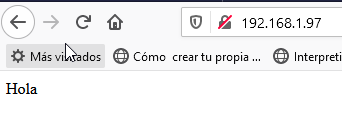
sudo apt install apache2Nos aseguraremos que funciona, abriemos un navegador e introduciremos la IP del servidor, en mi caso http://192.168.1.97, deberá aparecer una página de bienvenida tal como se puede ver a continuación.

Por defecto en /var/www/html se guardan las páginas web para crear un host virtual necesitamos crear un directorio llamado /var/www/tu_dominio
gotcha@hortelano:~$ sudo mkdir /var/www/catalana.gaDamos permisos al usuario
gotcha@hortelano:/var/www$ sudo chgrp www-data /var/www/html
gotcha@hortelano:/var/www$ sudo chgrp www-data /var/www/catalana.ga
gotcha@hortelano:/var/www$ sudo chmod -R 775 /var/www/html
gotcha@hortelano:/var/www$ sudo chmod -R g+s /var/www/html
gotcha@hortelano:/var/www$ sudo chmod -R 775 /var/www/catalana.ga/
gotcha@hortelano:/var/www$ sudo chmod -R g+s /var/www/catalana.ga/
gotcha@hortelano:/var/www$ sudo chown -R gotcha /var/www/html
gotcha@hortelano:/var/www$ sudo chown -R gotcha /var/www/catalana.ga/
Creamos página de prueba
gotcha@hortelano:~$ nano /var/www/catalana.ga/index.htmlApache viene configurado con el fichero de Host Virtual 000-default.conf, nosotros crearemos el nuestro propio. Comentar que más adelante securizaremos el sitio web con certificado SSL, eso supone que funcionará la web por el puerto 443. De momento configuramos el puerto 80 para mostrar la página.
gotcha@hortelano:~$ sudo nano /etc/apache2/sites-available/catalana.ga.conf

<VirtualHost *:80>
    ServerAdmin webmaster@localhost
    ServerName catalana.ga
    ServerAlias www.catalana.ga
    DocumentRoot /var/www/catalana.ga

    ErrorLog ${APACHE_LOG_DIR}/error.log
    CustomLog ${APACHE_LOG_DIR}/access.log combined
</VirtualHost>
Ahora activamos nuestro fichero de Host Virtual:
gotcha@hortelano:~$ sudo a2ensite catalana.ga.conf
Enabling site catalana.ga.
To activate the new configuration, you need to run:
  systemctl reload apache2
Y desactivamos el fichero por defecto que viene con Apache
gotcha@hortelano:~$ sudo a2dissite 000-default.conf
Site 000-default disabled.
To activate the new configuration, you need to run:
  systemctl reload apache2
Verificamos que la codificación de nuestro fichero es correcto (catalana.ga.conf)
gotcha@hortelano:~$ sudo apache2ctl configtest
AH00558: apache2: Could not reliably determine the server´s fully qualified domain name, using 127.0.1.1. Set the 'ServerName' directive globally to suppress this message
Syntax OK
Ignorar el mensaje de error anterior AH00558, es un mensaje informativo que la directiva ServerName no
está configurada globalmente. Si desea deshacerse de ese mensaje, puede establecer ServerName en el nombre de
dominio o dirección IP de su servidor en /etc/apache2/apache2.conf. Esto es opcional ya que el mensaje no afecta
a nada.
Reiniciamos el servicio de Apache2.
gotcha@hortelano:~$ sudo systemctl restart apache2
Podemos verificar si cargamos el site por Ip que muestra la nueva página, más adelante configuraremos el servidor DNS (BIND) para que podamos cargar la web por nombre (www....)
Vamos a configurar para que nuestro sitio tengo un certificado seguro. Hay que decir que lo haremos con un certificado autofirmado. En Bibliografía dejo un enlace que se explica cómo configurar un certificado por una autoridad certificadora. Para ello instalaremos y ejecutaremos lo siguiente:
gotcha@hortelano:/usr/share/phpmyadmin$ sudo a2enmod ssl
Considering dependency setenvif for ssl:
Module setenvif already enabled
Considering dependency mime for ssl:
Module mime already enabled
Considering dependency socache_shmcb for ssl:
Enabling module socache_shmcb.
Enabling module ssl.
See /usr/share/doc/apache2/README.Debian.gz on how to configure SSL and create self-signed certificates.
To activate the new configuration, you need to run:
  systemctl restart apache2
Reiniciamos Apache para que coja los cambios:
gotcha@hortelano:/usr/share/phpmyadmin$ sudo systemctl restart apache2
Creamos la clave SSL con openssl, el campo más importante es el de "Common Name" donde has de poner la Ip o el dominio. Se pueden usar comodines de ahí que yo haya usado *.catalana.ga. Aunque no es vital recomiendo que el siguiente paso se realice en una máquina diferente.
gotcha@hortelano:/usr/share/phpmyadmin$ sudo openssl req -x509 -nodes -days 365 -newkey rsa:2048 -keyout /etc/ssl/private/apache-selfsigned.key -out /etc/ssl/certs/apache-selfsigned.crt
Generating a RSA private key
.....................................+++++
......................................+++++
writing new private key to '/etc/ssl/private/apache-selfsigned.key'
-----
You are about to be asked to enter information that will be incorporated
into your certificate request.
What you are about to enter is what is called a Distinguished Name or a DN.
There are quite a few fields but you can leave some blank
For some fields there will be a default value,
If you enter '.', the field will be left blank.
-----
Country Name (2 letter code) [AU]:ES
State or Province Name (full name) [Some-State]:Cataluña
Locality Name (eg, city) []:Sant Adrià de Besòs
Organization Name (eg, company) [Internet Widgits Pty Ltd]:ET mi Casa
Organizational Unit Name (eg, section) []:ET
Common Name (e.g. server FQDN or YOUR name) []:*.catalana.ga
Email Address []:webmaster@catalana.ga
Se han creado dos ficheros de claves, estos están almacenados en /etc/ssl, en mi caso:
/etc/ssl/private/apache-selfsigned.key
/etc/ssl/certs/apache-selfsigned.crt
Ahora editaremos nuestro fichero de HostVirtual y lo configuraremos para que escuche por el puerto 443 y lo configuraremos de la siguiente manera, marco las líneas que sufren cambios
gotcha@hortelano:/etc/ssl$ sudo nano /etc/apache2/sites-available/catalana.ga.conf

<VirtualHost *:443>
    ServerAdmin webmaster@localhost
    ServerName catalana.ga
    ServerAlias www.catalana.ga
    DocumentRoot /var/www/catalana.ga

    SSLEngine on
    SSLCertificateFile /etc/ssl/certs/apache-selfsigned.crt
    SSLCertificateKeyFile /etc/ssl/private/apache-selfsigned.key

    ErrorLog ${APACHE_LOG_DIR}/error.log
    CustomLog ${APACHE_LOG_DIR}/access.log combined
</VirtualHost>
Me aseguro que el HostVirtual está bien activado:
gotcha@hortelano:/etc/ssl$ sudo apache2ctl configtest
AH00558: apache2: Could not reliably determine the server's fully qualified domain name, using 127.0.1.1. Set the 'ServerName' directive globally to suppress this message
Syntax OK
Para que tome efecto reiniciamos el servidor apache.
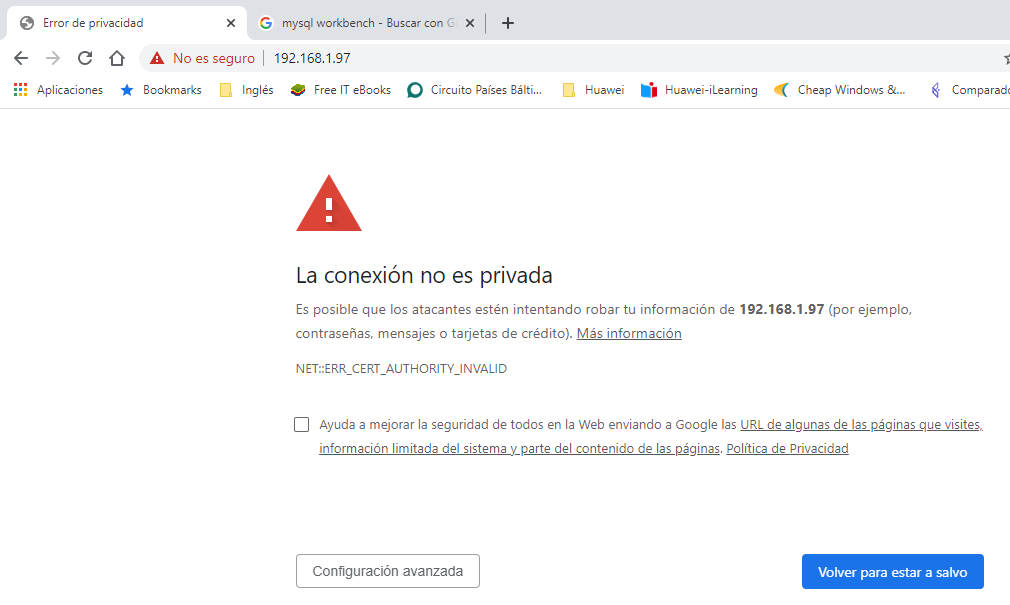
gotcha@hortelano:/etc/ssl$ sudo systemctl reload apache2Probamos y como es un certificado autofirmado nos da una Advertencia:
Ya por último vamos a forzar que si alguien intenta conectarse a la web por http en vez de https sea redirigido a https.
Volvemos a editar el fichero de HostVirtual, añadimos las líneas sombreadas en azul:
gotcha@hortelano:/etc/ssl$ sudo nano /etc/apache2/sites-available/catalana.ga.conf

<VirtualHost *:443>
    ServerAdmin webmaster@localhost
    ServerName catalana.ga
    ServerAlias www.catalana.ga
    DocumentRoot /var/www/catalana.ga

    SSLEngine on
    SSLCertificateFile /etc/ssl/certs/apache-selfsigned.crt
    SSLCertificateKeyFile /etc/ssl/private/apache-selfsigned.key

    ErrorLog ${APACHE_LOG_DIR}/error.log
    CustomLog ${APACHE_LOG_DIR}/access.log combined
</VirtualHost>

<VirtualHost *:80>
    ServerName catalana.ga
    Redirect / https://www.catalana.ga
</VirtualHost>
Ojo sustituir https://www.catalana.ga por https://tuIP mientras no tengas un Servidor de DNS que resuelva el nombre.
Para que tome efecto reiniciamos el servidor apache.
gotcha@hortelano:/etc/ssl$ sudo systemctl reload apache2Instalamos el módulo del PHP.
sudo apt install php libapache2-mod-php php-mysqlPonemos index.php primero.
gotcha@hortelano:~$ sudo nano /etc/apache2/mods-enabled/dir.conf

<IfModule mod_dir.c>
    DirectoryIndex index.php index.html index.cgi index.pl index.xhtml index.htm
</IfModule>
Recargamos Apache para que coja la nueva configuración.
gotcha@hortelano:~$ sudo systemctl restart apache2Vamos a probar que el PHP se instaló correctamente, para ello creamos un fichero tal como así:
gotcha@hortelano:~$ sudo nano /var/www/catalana.ga/info.php
<? php
phpinfo();
?>
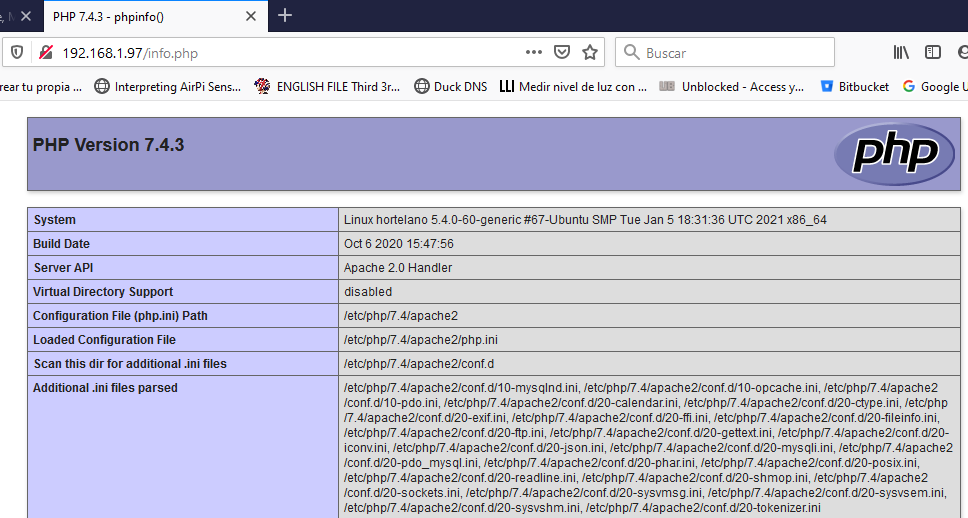
Si sale una página similar a esta, significa que el PHP funciona bien:
Es recomendable que tras verificar que el PHP está bien instalado borrar el fichero info.php, ya que estaríamos ofreciendo información crítica a cualquier persona que quisiera atacarnos.
gotcha@hortelano:~$ sudo rm /var/www/catalana.ga/info.phpEn el siguiente enlace encontrarás todos los pasos bien explicado. Sólo has de tener en cuenta cual es tú IP y que dominio quieres usar. Yo usé el dominio catalana.ga, pero puedes usar el que quieras, no importa si ya está en uso.
Cómo configurar BIND como servidor DNS de red privada en Ubuntu 18.04
Procederemos a isntalar el servidor de Bases de Datos Mysql.
sudo apt install mysql-serverA continuación, Securizamos el servidor de Mysql, hay que ir contestando con Yes a las prguntas. En la siguiente captura hay un y que resalta en cada pregunta.
gotcha@hortelano:~$ sudo mysql_secure_installation
Securing the MySQL server deployment.
Connecting to MySQL using a blank password.

VALIDATE PASSWORD COMPONENT can be used to test passwords
and improve security. It checks the strength of password
and allows the users to set only those passwords which are
secure enough. Would you like to setup VALIDATE PASSWORD component?
Press y|Y for Yes, any other key for No: y
There are three levels of password validation policy:
LOW    Length >= 8
MEDIUM Length >= 8, numeric, mixed case, and special characters
STRONG Length >= 8, numeric, mixed case, special characters and dictionary file
Please enter 0 = LOW, 1 = MEDIUM and 2 = STRONG: 2
Please set the password for root here.

New password: xxxxx
Re-enter new password: xxxxx

Estimated strength of the password: 100
Do you wish to continue with the password provided?(Press y|Y for Yes, any other key for No) :  y

By default, a MySQL installation has an anonymous user,
allowing anyone to log into MySQL without having to have
a user account created for them. This is intended only for
testing, and to make the installation go a bit smoother.
You should remove them before moving into a production
environment.
Remove anonymous users? (Press y|Y for Yes, any other key for No) :  y
Success.
Normally, root should only be allowed to connect from
'localhost'. This ensures that someone cannot guess at
the root password from the network.
Disallow root login remotely? (Press y|Y for Yes, any other key for No) :  y
Success.
By default, MySQL comes with a database named 'test' that
anyone can access. This is also intended only for testing,
and should be removed before moving into a production
environment.
Remove test database and access to it? (Press y|Y for Yes, any other key for No) :  y
 - Dropping test database...
Success.
 - Removing privileges on test database...
Success.
Reloading the privilege tables will ensure that all changes
made so far will take effect immediately.
Reload privilege tables now? (Press y|Y for Yes, any other key for No) :  y
Success.
All done!Tenga en cuenta que en los sistemas Ubuntu que ejecutan MySQL 5.7 (y versiones posteriores), el usuario raíz de
MySQL está configurado para autenticarse mediante el complemento auth_socket de forma predeterminada en
lugar de con una contraseña. Esto permite una mayor seguridad y usabilidad en muchos casos, pero también puede
complicar las cosas cuando necesita permitir que un programa externo (por ejemplo, phpMyAdmin) acceda al
usuario.
Si prefiere usar una contraseña al conectarse a MySQL como root, deberá cambiar su método de autenticación de
auth_socket a mysql_native_password. Para hacer esto, abra el indicador de MySQL desde su
terminal:
gotcha@hortelano:~$ sudo mysql
mysql> SELECT user,authentication_string,plugin,host FROM mysql.user;
+------------------+------------------------------------------------------------------------+-----------------------+-----------+
| user             | authentication_string                                                  | plugin                | host      |
+------------------+------------------------------------------------------------------------+-----------------------+-----------+
| debian-sys-maint | $A$005$VWb~(gckbg~HF76vfYL57cxDLmwYQGH90JrcomqxSj4SPSqG8Cg1bAD         | caching_sha2_password | localhost |
| mysql.infoschema | $A$005$THISISACOMBINATIONOFINVALIDSALTANDPASSWORDTHATMUSTNEVERBRBEUSED | caching_sha2_password | localhost |
| mysql.session    | $A$005$THISISACOMBINATIONOFINVALIDSALTANDPASSWORDTHATMUSTNEVERBRBEUSED | caching_sha2_password | localhost |
| mysql.sys        | $A$005$THISISACOMBINATIONOFINVALIDSALTANDPASSWORDTHATMUSTNEVERBRBEUSED | caching_sha2_password | localhost |
| root             |                                                                        | auth_socket           | localhost |
+------------------+------------------------------------------------------------------------+-----------------------+-----------+
5 rows in set (0.00 sec)
En este ejemplo, puede ver que el usuario root se autentica utilizando el complemento auth_socket. Para configurar la cuenta raíz para que se autentique con una contraseña, ejecute el siguiente comando ALTER USER. Asegúrese de cambiar la contraseña a una contraseña segura de su elección:
mysql> ALTER USER 'root'@'localhost' IDENTIFIED WITH mysql_native_password BY 'TuPassword';
Query OK, 0 rows affected (0.00 sec)
Recargamos la tabla de privilegios y verificamos que ha cambiado.
mysql> FLUSH PRIVILEGES;
Query OK, 0 rows affected (0.00 sec)

mysql> SELECT user,authentication_string,plugin,host FROM mysql.user;
+------------------+------------------------------------------------------------------------+-----------------------+-----------+
| user             | authentication_string                                                  | plugin                | host      |
+------------------+------------------------------------------------------------------------+-----------------------+-----------+
| debian-sys-maint | $A$005$VWb~(gckbg~HF76vfYL57cxDLmwYQGH90JrcomqxSj4SPSqG8Cg1bAD         | caching_sha2_password | localhost |
| mysql.infoschema | $A$005$THISISACOMBINATIONOFINVALIDSALTANDPASSWORDTHATMUSTNEVERBRBEUSED | caching_sha2_password | localhost |
| mysql.session    | $A$005$THISISACOMBINATIONOFINVALIDSALTANDPASSWORDTHATMUSTNEVERBRBEUSED | caching_sha2_password | localhost |
| mysql.sys        | $A$005$THISISACOMBINATIONOFINVALIDSALTANDPASSWORDTHATMUSTNEVERBRBEUSED | caching_sha2_password | localhost |
| root             | *C8738559232574D44888FB3FAB83C95B8B1F14EA                              | mysql_native_password | localhost |
+------------------+------------------------------------------------------------------------+-----------------------+-----------+
5 rows in set (0.00 sec)

mysql> exit
ByeInstalamos los siguientes paquetes:
gotcha@hortelano:/$ sudo apt install phpmyadmin php-mbstring php-zip php-gd php-json php-curl
Nos preguntará si queremos realmente instalar, le diremos que Yes.

Nos pregunta si deseamos instalar la base de datos de phpmyadmin diremos que Yes.

Te pide que crees una contraseña para el usuario de MySql phpmyadmin y a continuación que la confirmes.
Si te da el siguiente mensaje, abortaremos la instalación, esto es debido por la encriptación de contraseña que tiene MySql. En el siguiente paso lo solucionamos.

Nos conectamos con el usuario root de MySql, es necesario deshabilitar la Validación de Contraseñas.
gotcha@hortelano:/$ mysql -u root -p

        mysql> UNINSTALL COMPONENT "file://component_validate_password";
        Query OK, 0 rows affected (0.00 sec)

        mysql> exit
        Bye
Ahora ya nos dejará instalar phpMyAdmin.
gotcha@hortelano:~$ sudo apt install phpmyadmin
Nos pregunta si deseamos instalar la base de datos de phpmyadmin diremos que Yes.

Volvemos a habilitar la Validación de Contraseñas.
gotcha@hortelano:/$ mysql -u root -p
mysql> INSTALL COMPONENT "file://component_validate_password";
Query OK, 0 rows affected (0.00 sec)
Se recomienda activar el siguiente módulo de PHP para poder trabajar con multi-byte string (trim, split, splice, etc), en Apache.
gotcha@hortelano:~$ sudo phpenmod mbstringReiniciamos Apache.
gotcha@hortelano:~$ sudo systemctl restart apache2https://www.digitalocean.com/community/tutorials/how-to-install-and-secure-phpmyadmin-on-ubuntu-20-04#step-3-%E2%80%94-securing-your-phpmyadmin-instance
phpMyAdmin 5 es compatible con PHP 7.1 o superior si tienes una versión anterior visita https://www.phpmyadmin.net/
Vemos que la versión de php es la correcta
gotcha@hortelano:~$ php -v
PHP 7.4.3 (cli) (built: Oct  6 2020 15:47:56) ( NTS )
Hacemos una copia de seguridad del actual phpMyAdmin y lo movemos de directorio:
gotcha@hortelano:~$ sudo mv /usr/share/phpmyadmin/ /usr/share/phpmyadmin.bak
gotcha@hortelano:~$ sudo mkdir /usr/share/phpmyadmin/
gotcha@hortelano:~$ cd /usr/share/phpmyadmin/
Bajamos la última release de phpMyAdmin en nuestro caso la 5.0.4, y extraemos los ficheros
gotcha@hortelano:/usr/share/phpmyadmin$ sudo wget https://files.phpmyadmin.net/phpMyAdmin/5.0.4/phpMyAdmin-5.0.4-all-languages.tar.gz                                                                                                        --2021-01-10 15:55:03--  https://files.phpmyadmin.net/phpMyAdmin/5.0.4/phpMyAdmin-5.0.4-all-languages.tar.gz
Resolving files.phpmyadmin.net (files.phpmyadmin.net)... 185.93.3.14, 195.181.167.19, 2a02:6ea0:c300::6, ...
Connecting to files.phpmyadmin.net (files.phpmyadmin.net)|185.93.3.14|:443... connected.
HTTP request sent, awaiting response... 200 OK
Length: 12898226 (12M) [application/octet-stream]
Saving to: ‘phpMyAdmin-5.0.4-all-languages.tar.gz’

phpMyAdmin-5.0.4-all-languages.tar.gz                       100%[========================================================================================================================================>]  12.30M  11.5MB/s    in 1.1s

2021-01-10 15:55:04 (11.5 MB/s) - ‘phpMyAdmin-5.0.4-all-languages.tar.gz’ saved [12898226/12898226]

gotcha@hortelano:/usr/share/phpmyadmin$ sudo tar xzf phpMyAdmin-5.0.4-all-languages.tar.gz

gotcha@hortelano:/usr/share/phpmyadmin$ ls
phpMyAdmin-5.0.4-all-languages  phpMyAdmin-5.0.4-all-languages.tar.gz
Movemos el contenido de la carpeta a donde toca para que funcione bien:
sudo mv phpMyAdmin-5.0.4-all-languages/* /usr/share/phpmyadmin
Si nos conectamos a phpmyadmin encontraremos 2 errores en mi caso me he conectado con http://192.168.1.97/phpmyadmin

Para solventar este problema hay que editar el fichero vendor_config.php de la siguiente manera:
gotcha@hortelano:$ sudo nano /usr/share/phpmyadmin/libraries/vendor_config.php
| Antes | Después |
|---|---|
| define('TEMP_DIR', ROOT_PATH . 'tmp/'); | define('TEMP_DIR','/var/lib/phpmyadmin/tmp/' ); |
| define('CONFIG_DIR', ROOT_PATH); | define('CONFIG_DIR', '/etc/phpmyadmin/'); |
Con CTRL+W puedes buscar las palabras clave (TEMP_DIR y CONFIG_DIR)
Con CTRL+X y luego Y guardas el fichero
Vemos que ahora ya no sale ningún mensaje de error:
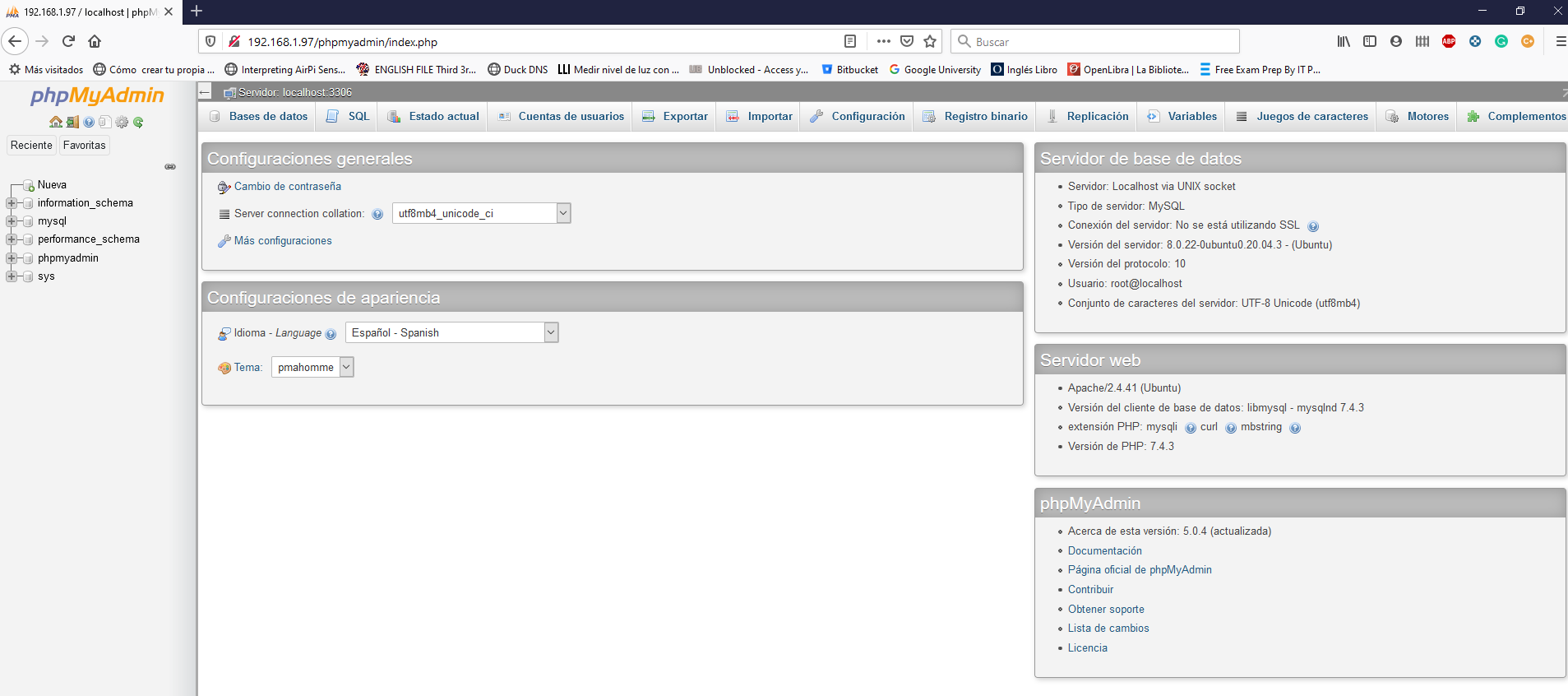
Ya sólo queda limpiar todos los ficheros que hemos guardado de backup, ahora ya no son necesarios.
gotcha@hortelano:/usr/share/phpmyadmin$ sudo rm /usr/share/phpmyadmin/phpMyAdmin-5.0.4-all-languages.tar.gz
gotcha@hortelano:/usr/share/phpmyadmin$ sudo rm -rf /usr/share/phpmyadmin/phpMyAdmin-5.0.4-all-languages
gotcha@hortelano:/usr/share/phpmyadmin$ sudo rm -rf /usr/share/phpmyadmin.bak
Listamos los puertos que vienen preconfigurado como APP
gotcha@hortelano:/usr$ sudo ufw app list
Available applications:
  Apache
  Apache Full
  Apache Secure
  Bind9
  OpenSSH
Permitimos SOLO los puertos del Apache (80/TCP y 443/TCP), del Bind (53/TCP y 53/UDP), del MySql (3306/TCP) y para podernos comunicar con el servidor SSH (22/TCP).
gotcha@hortelano:/usr$ sudo ufw allow "Apache Full"

gotcha@hortelano:/usr$ sudo ufw allow "Bind9"

gotcha@hortelano:/usr$ sudo ufw allow "OpenSSH"

gotcha@hortelano:/usr$ sudo ufw allow 3306
Una vez configurado los puertos permitidos, procedemos a activar el Cortafuegos
gotcha@hortelano:/usr$ sudo ufw enable
Command may disrupt existing ssh connections. Proceed with operation (y|n)? y
Firewall is active and enabled on system startup
Verificamos que queda activado:
gotcha@hortelano:/usr$ sudo ufw status
Status: active

To                         Action      From
--                         ------      ----
Apache Full                ALLOW       Anywhere
Bind9                      ALLOW       Anywhere
OpenSSH                    ALLOW       Anywhere
3306                       ALLOW       Anywhere
Apache Full (v6)           ALLOW       Anywhere (v6)
Bind9 (v6)                 ALLOW       Anywhere (v6)
OpenSSH (v6)               ALLOW       Anywhere (v6)
3306 (v6)                  ALLOW       Anywhere (v6)